Sixty-Two Days Without a Backup, and Nothing Reported a Problem
A macOS disk-pressure incident, the three tools that misled me, and the four monitoring mistakes I made afterwards.
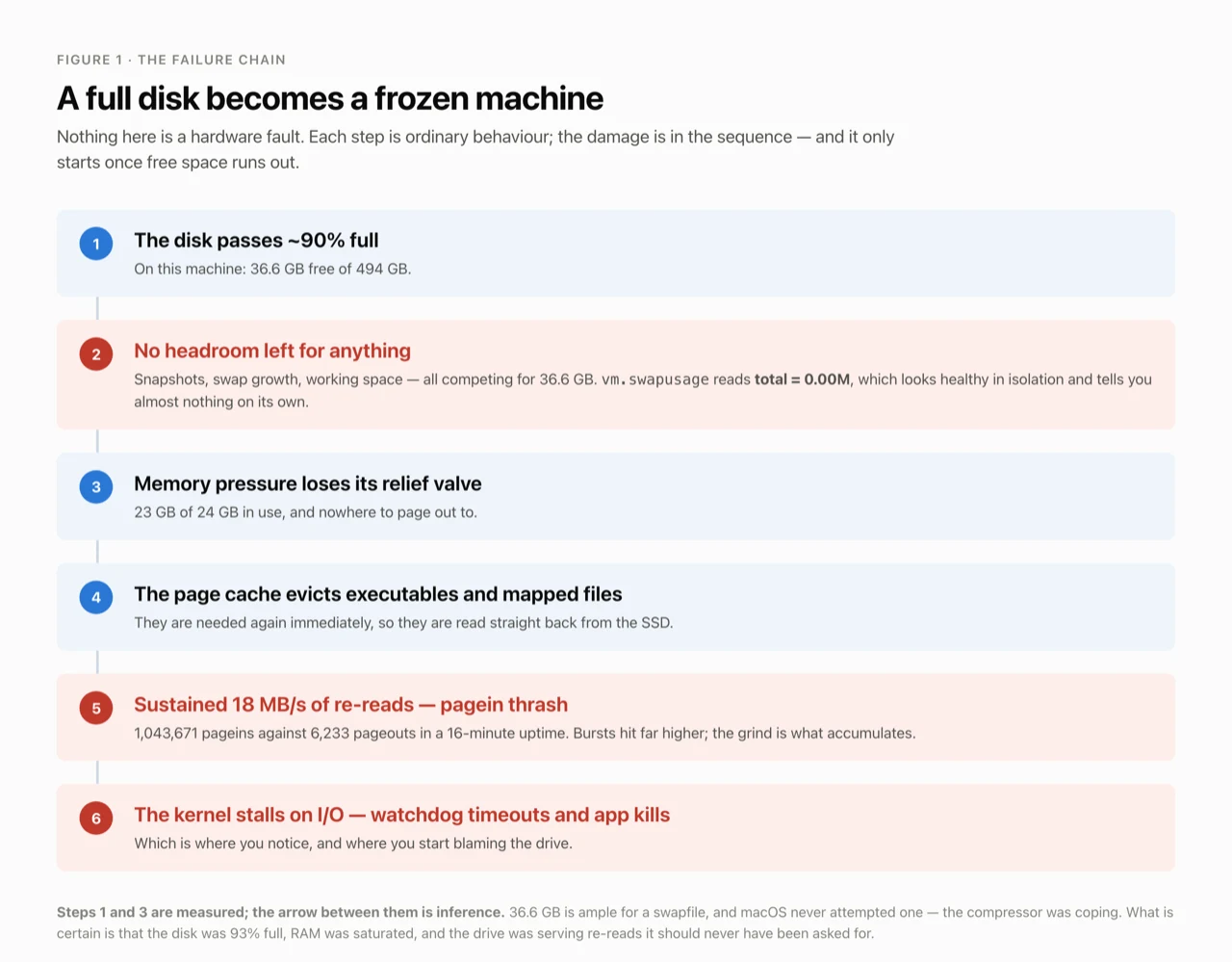
What was the symptom?
The symptom first appeared in early September. The machine, a 24 GB M-series MacBook Air with a 512 GB SSD running macOS 26, would stall completely for ten to twenty seconds at a time, with Activity Monitor reporting disk reads approaching 1 GB/s and no process obviously accountable for them. The initial hypothesis, which turned out to be wrong, was a failing SSD.
Treat that 1 GB/s loosely. Activity Monitor reports instantaneous bursts, and a burst on its own establishes nothing. The figure that mattered was considerably smaller and considerably more damning.
The 1st place to look was SMART:
SMART overall-health self-assessment test result: PASSED

Critical Warning:                   0x00
Available Spare:                    100%
Percentage Used:                    0%
Media and Data Integrity Errors:    0
Error Information Log Entries:      0

Read 1 entries from Error Information Log failed:
GetLogPage failed: system=0x38, sub=0x0, code=745
Is GetLogPage failed a disk fault?
It is not, and this is worth establishing before anything else, because it is the line that looks like the answer.
system=0x38 identifies the IOKit error space, as defined in Apple’s IOKit/IOReturn.h, and code=745 is kIOReturnDeviceError. Apple’s NVMe driver exposes the health page, 0x02. smartctl also asks for page 0x01, the Error Information Log, and the driver refuses. Apple has published neither source nor documentation for its NVMe SMART interface, which is why smartmontools has never fully implemented the Darwin command set; the behaviour is tracked upstream as smartmontools issue #176. I have observed it on every Apple Silicon Mac I have checked, which is a handful and not a population.
The tell is two lines above it. Error Information Log Entries: 0 means there is nothing in that log to read. smartctl asks for one entry anyway, is refused, and reports a device error. It also exits with status 4, which later killed the 1st version of my own diagnostic script, silently, at precisely the section written to explain the error away.
Judge an Apple Silicon drive by Critical Warning, Available Spare, Percentage Used and Media and Data Integrity Errors. All four were perfect, and stayed perfect for the duration of the incident.
What did SMART actually establish?
The health fields were clean. The lifetime counters were not:
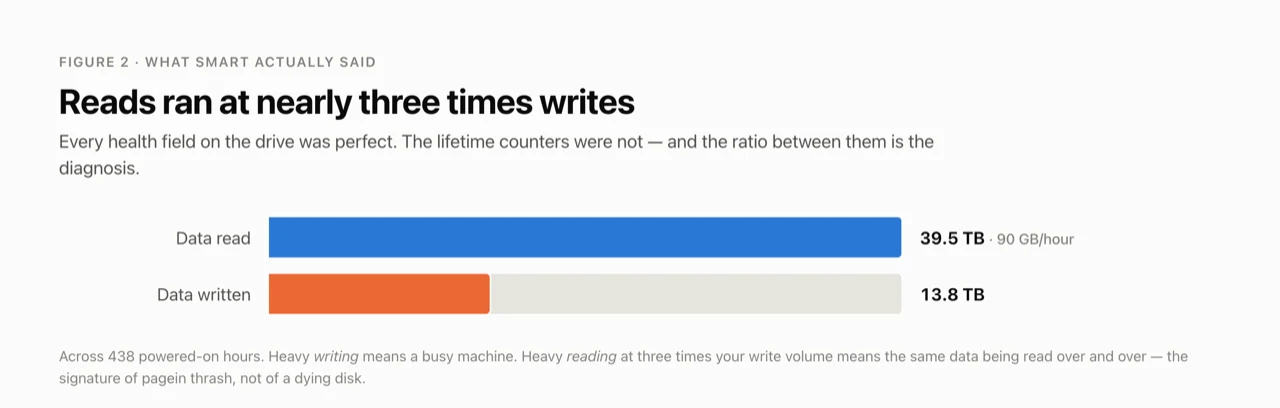
Data Units Read:     77,217,786 [39.5 TB]
Data Units Written:  27,033,148 [13.8 TB]
Power On Hours:      438
39.5 TB across 438 powered-on hours works out to 90 GB per hour, every hour the machine has ever been awake. That sounds apocalyptic until you divide it again by 3,600 and get 25 MB/s. This was never a spike. It is a grind, running continuously for the life of the drive, low enough that nothing flagged it and relentless enough to accumulate 39.5 TB.
The read-to-write ratio is nearly 3:1, which on its own proves very little, since compiling, image pulls and model loading all read far more than they write. What it did was indicate where to look next:
Pageins:   1,043,671      (in a 16-minute uptime)
Pageouts:      6,233
PhysMem:   23G used, 259M unused
vm.swapusage: total = 0.00M
At the 16 KB page size used on Apple Silicon, 1,043,671 pageins is roughly 17 GB, and 17 GB over 16 minutes is about 18 MB/s, which is the same order as the drive’s lifetime average. Whatever this was, it had been running far longer than the sixteen minutes I happened to be watching.
This is pagein thrash: the page cache evicting executables and memory-mapped files that are needed again immediately, so that they are read straight back from the SSD. It presents as a disk fault and originates in memory. The SSD was not degrading; it was absorbing, continuously and at roughly 18 MB/s, work that belonged to RAM.
Why doesn’t df agree with Finder, or with itself?
Before the disk could be assessed at all, three properties of the tooling had to be accounted for:
Filesystem      Size    Used   Avail Capacity   Mounted on
/dev/disk3s1s1  460Gi    12Gi    43Gi     22%   /
/dev/disk3s5    460Gi   396Gi    43Gi     91%   /System/Volumes/Data
1st, the rows are not independent. Both show 460Gi and 43Gi because APFS volumes share a single container, so Size and Avail are container-wide and identical on every row. Only Used is per-volume. Never sum them.
2nd, the units differ between tools. df -h reports GiB (1024³) while diskutil and Finder report GB (1000³), so the same 396 GiB presents as 425.5 GB. This is why du totals never reconcile with df -h.
3rd, Finder counts purgeable space as free. Snapshots and evictable caches are included, on the reasoning that macOS can release them under pressure, while df counts only genuinely free blocks. Finder will report 80 GB free where df reports 20 GB, and under pressure the system behaves like df.
One command avoids all three:
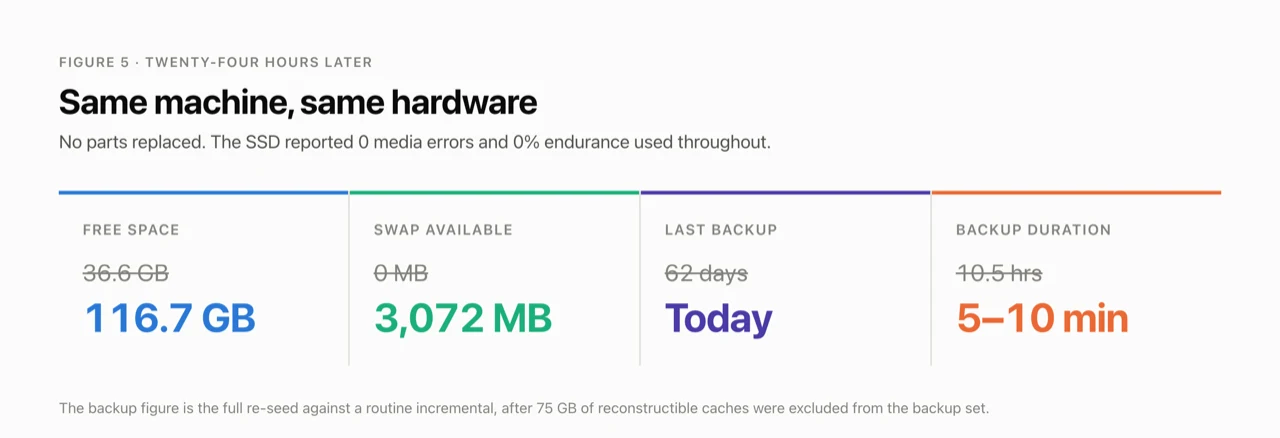
diskutil info /System/Volumes/Data | grep "Container Free"It reported 36.6 GB free. The volume was 93% full.
How much of the failure chain can I actually support?
The chain runs from a disk past roughly 90% full, through the loss of headroom for snapshots and swap growth, to memory pressure with no relief valve, to a page cache evicting mapped files that are read straight back, to kernel stalls, watchdog timeouts and jetsam kills.
The tidy version of the middle of that chain is that the disk was too full for macOS to create a swapfile, leaving memory pressure with nowhere to go. I held that view for most of a day and I cannot support it. There were 36.6 GB free, far more than a swapfile requires, and swapouts: 0 for the entire boot indicates macOS never attempted to swap at all. The compressor was holding 9.4 GB of pages squeezed into 3.9 GB and was, technically, coping. I also failed to read the reason on that day’s JetsamEvent before macOS rotated the file away, so I cannot tell you the kills were memory exhaustion rather than routine per-process limits.
The 1st and 3rd steps are measured. The arrow between them is inference, and should be read as such.
vm.swapusage: total = 0.00M means nothing in isolation, since plenty of machines run for weeks without touching swap. It is a signal only alongside saturated RAM and a busy compressor, and even then it establishes that the compressor is carrying the system, not that swap was refused. Judge memory pressure by pagein rate, compressor size and jetsam reasons, and never by “unused”, which reads 259M on a perfectly healthy Mac.
Why did deleting 9 GB free nothing?
I cleared 8.9 GB of Homebrew downloads and re-checked free space. It had not moved at all:
tmutil listlocalsnapshots /
com.apple.TimeMachine.2026-09-05-215646.local
A local Time Machine snapshot taken minutes earlier still referenced those blocks. Deleting the files removed the directory entries while the blocks stayed allocated. macOS mints these roughly hourly whenever Time Machine is enabled, including partway through a cleanup, re-pinning what you have just deleted.
Finish every cleanup with a thin, or it accomplished nothing:
sudo tmutil thinlocalsnapshots / 999999999999 4The number is how many bytes to attempt to free, deliberately absurd, meaning all of them. The 4 is urgency on a 1 to 4 scale, and 4 will remove local snapshots rather than negotiate. These are local snapshots only, and backups already on the destination are untouched. Better still, pause Time Machine for the duration so it cannot mint a fresh snapshot mid-run, and make sure whatever pauses it turns it back on.
While we are on the subject of numbers that are not what they appear, ls -lh Docker.raw reported 460G and du -h Docker.raw reported 42G. The file is sparse, and 460 GB is the ceiling it may grow to rather than what it occupies. Always use du for disk images, VM bundles and database files.
When did a backup last actually complete?
This is the part I would like you to act on.
Time Machine was on. It had always been on, and System Settings said so throughout:
SnapshotDates (completed backups):
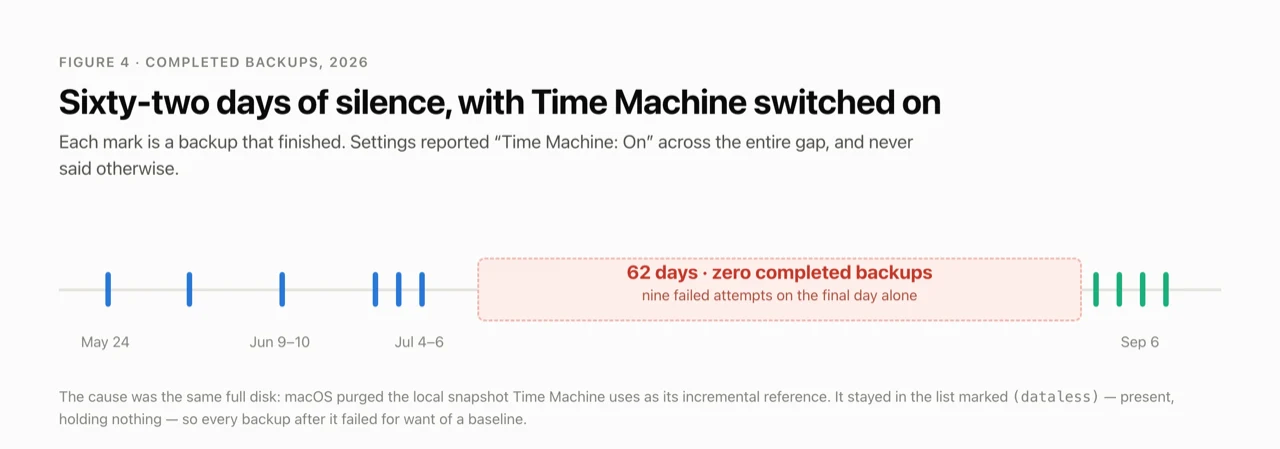
  2026-05-24
  2026-06-09
  2026-07-04
  2026-07-05
  2026-07-06     ← last one
  ...nothing...
Sixty-two days with no completed backup, on a machine that reported “Time Machine: On” the entire time and never once said otherwise.
The mechanism is the same root cause. Time Machine retains a local snapshot as the reference snapshot, the baseline it diffs against to produce an incremental. When the disk filled, macOS purged that snapshot’s contents to reclaim space. It remained in the list, marked (dataless), present but holding nothing. With no valid baseline every subsequent backup failed, and retried, and failed, nine times on the final day alone, each attempt burning CPU and I/O into the very pressure that caused it. backupd tripped macOS’s own excessive-resource reporter in the process. None of it surfaced.
Check the age of the last completed backup:
defaults read /Library/Preferences/com.apple.TimeMachine \
  | sed -n '/SnapshotDates/,/);/p' | tail -3
Read SnapshotDates, which records completions, rather than AttemptDates, which does not record every attempt and which I initially misread as a two-month-longer outage than had actually occurred. Note also that this reads the preference file directly, because tmutil latestbackup requires Full Disk Access that a scheduled agent will not have.
Why did my own check report OK for thirty-three hours?
I wrote that check, put it in a launchd agent running every two hours, and two months later it told me, calmly and repeatedly:
OK Backup 1d agoIt said that for thirty-three hours, across nineteen consecutive failed backups.
The mechanism is the same one, a level up. SnapshotDates records the backups that finish, so a chain that attempts hourly and fails hourly does not make that number older, it makes it stop. A number that has stopped is indistinguishable, for a full day, from a number that is fine, and by the time it drifts past a two-day threshold the destination is already two days behind.
The real signal was four lines away in the file I was already reading:
RESULT = 26Zero means the last attempt succeeded. Twenty-six is BACKUP_FAILED_DISCONNECTED_NETWORK. It had been sitting there the whole time. Age is a lagging proxy for “backups are working”, so check the outcome of the most recent attempt as well:
defaults read /Library/Preferences/com.apple.TimeMachine | grep RESULT
log show --last 24h --predicate 'subsystem == "com.apple.TimeMachine"' \
  | grep BACKUP_FAILED
The cause was dull, which is the point. A laptop backing up to a NAS over Wi-Fi, closing its lid every few minutes, dropped the SMB session mid-copy every time; fifty-eight of sixty reconnects landed within five seconds of a sleep transition. backupd does hold an anti-sleep assertion, but the kind that blocks idle sleep only, and closing the lid ignores it entirely. Nothing was damaged, Time Machine aborts and retries cleanly, and that is precisely why it never said a word.
What does a re-seed cost, and what drives that cost?
With the reference snapshot gone, Time Machine abandoned the broken chain and started over: 350 GB and 3.48 million files, to a consumer NAS over Wi-Fi, running for ten and a half hours.
Partway through, throughput collapsed from 22 MB/s to 1.4 MB/s while backupd sat at 173% CPU moving 7.5 files per second. It was not waiting on the network. Wi-Fi was pristine throughout at 802.11ax, −47 dBm and 1,080 Mbps negotiated. The cost was not bytes but files, and the ranking of the directories inverts completely depending on which you count:
| Directory | Size | Files |
|---|---|---|
~/.ollama |
6.6 GB | 29 |
~/Library/Containers/com.docker.docker |
24.1 GB | 148 |
~/.pub-cache |
1.2 GB | 61,296 |
~/.cache |
8.8 GB | 107,760 |
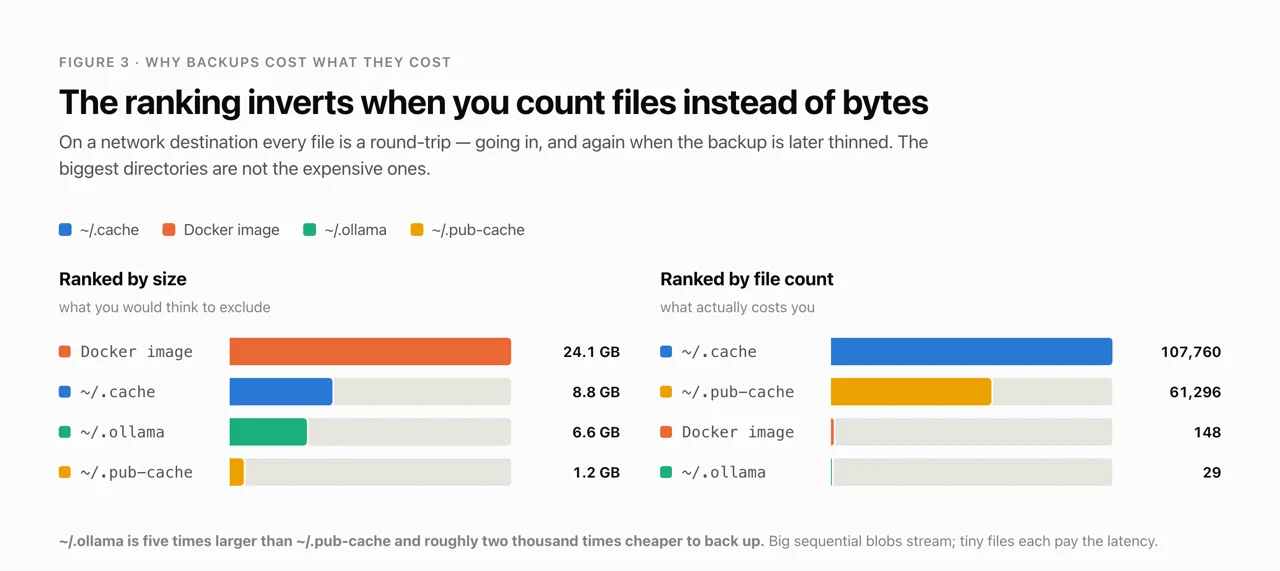
~/.ollama is five times larger than ~/.pub-cache and roughly two thousand times cheaper to back up, since big sequential blobs stream while tiny files each pay a round-trip. You also pay twice: during the post-backup thinning pass I watched it delete a superseded backup one unlink at a time over SMB, grinding through ~/.cache/uv/archive-v0/. Whatever you back up, you eventually pay to delete.
None of that data was worth keeping, being reconstructible from a registry, a lockfile or a re-download, so I excluded 75 GB across eleven directories using sticky path exclusions, which survive the folders being deleted and recreated:
sudo tmutil addexclusion -p ~/.cache ~/.npm ~/.ollama ~/.rustupExclude caches and registries rather than the directories that contain them: ~/.cargo/registry and not ~/.cargo, which also holds credentials; ~/.m2/repository and not ~/.m2, which holds settings.xml. An exclusion is not a deletion, but it does mean that directory will not be there when you restore.
The next incremental completed in about thirteen minutes against ten and a half hours, and once the full exclusion list had been applied the following four settled at five to ten minutes each. Swap came back at the same time, reporting total = 5120.00M, used = 3408.25M, which is the safety valve working again.
What did I get wrong about monitoring?
Every signal was present for days beforehand. Jetsam events, macOS’s own excessive-disk-write reports, free space falling. Nothing was watching. So I wrote something that watches, and got the alerting wrong four times.
1st, history escalating current state. I treated jetsam reports as an alerting signal, so after the disk was fixed the guard kept reporting WARN for three days over kills that had already stopped, which is precisely when a monitor most needs to go quiet. Checks are current conditions and escalate; notes are historical context and never do.
2nd, naming the wrong subsystem. Every notification title was hardcoded to the disk branch, so the stale-backup alert announced itself as “Disk CRIT: 22% free” on a machine with 121 GB free, naming the wrong problem and contradicting its own threshold in the same sentence. Each check now owns its verdict and its wording.
3rd, a check that could only ever answer “fine”. Not all JetsamEvents mean the same thing, since per-process-limit is routine and vm-pageshortage is real memory exhaustion, so the guard learned to read the reason. My 1st classifier used sudo -n grep, which fails whenever a password is required. It would have reported “no memory events” forever, and nothing would have distinguished that from the truth.
4th, building the check out of the artifact of success. This one took two months to surface and is the one I would most like back. Backup age derives from the list of completed backups, so it only moves when the system is working. I had built a check that, by construction, could only ever report success, and then read its stillness as health. The fix was a 2nd row reading the outcome of the last attempt, with the two verdicts kept separate, because “0 days old and failing” is the normal shape of that fault and folding them into one number lets the healthy half hide the broken half.
A check that reports healthy when it cannot tell is worse than no check at all. Report UNKNOWN.
Who does this actually affect?
The 1st outage required three conditions to coincide: a nearly-full disk, a slow backup destination, and a heavy polyglot toolchain that generates hundreds of thousands of small transient files. With 500 GB free the relief valve never fails. With a fast local destination the file-count cost is still present, but it is ninety seconds rather than ten hours, so nobody notices. Miss any one condition and none of this happens.
The 2nd outage had none of them. Nineteen percent free, a healthy SSD, −59 dBm Wi-Fi with zero packet loss, and no completed backup for thirty-four hours, because the laptop never stayed awake long enough in one stretch to finish one.
So the narrow claim concerns disk pressure, and the wider one is this: a backup can be enabled, attempting on schedule, damaging nothing, and still not have worked in weeks. Disk pressure is one route there and a closed lid is another, and what they share is that macOS reports the same thing in both cases, which is nothing at all.
One caveat, since everything above concerns reclaiming space and that is only half an answer. Freeing 85 GB gave the system headroom and did not add RAM. If pageins climb while pageouts stay near zero and the compressor is large, the working set exceeds the machine and no amount of cache clearing will touch it. Mine was both, and only one of the two was fixable in a night.
What should you check right now?
These take under a minute.
# 1. Real free space, rather than what df or Finder report
diskutil info /System/Volumes/Data | grep "Container Free"

# 2. When did a backup last COMPLETE?
defaults read /Library/Preferences/com.apple.TimeMachine \
  | sed -n '/SnapshotDates/,/);/p' | tail -3

# 3. Did the LAST attempt succeed?  0 = yes, anything else is the failure code
defaults read /Library/Preferences/com.apple.TimeMachine | grep RESULT

# 4. Are snapshots holding space you believe you freed?
tmutil listlocalsnapshots /

# 5. Is a cache in every one of your backups?
tmutil isexcluded ~/.cache
If 2 or 3 surprises you, this article did its job. The 2nd is the one people expect to be fine and is not. The 3rd is the one that stays wrong while the 2nd still looks right.
What is not covered here
The exclusion policy is tuned to my toolchain and should be treated as a starting point rather than as gospel. The failure-chain inference in the middle of this article remains unproven and I would welcome anyone who can measure it properly. I have not established what Docker Desktop does around a clean shutdown that returns 20 GB to the host, only that it does. And all of this has been observed on exactly one machine, running one version of macOS, backing up to one NAS.
I wrote the checks up afterwards as a small zsh toolkit, plimsoll, largely so that a rebuilt machine would inherit the same exclusions rather than my recollection of which caches were safe. It is mine, so weigh the recommendation accordingly; the five commands above are the part that matters and they need nothing installed.
The toolkit that came out of this incident is
plimsoll — the checks in
“What should you check right now?” are what plimsoll report runs,
and the watchdog is the answer to the monitor that could only ever report
success.